
Intervals.icu Setup
Complete step-by-step guide to connect Garmin, configure Intervals.icu, and start receiving daily feedback.
ONWRD pulls your training data through Intervals.icu. This setup process is essential to ensure all your data is transferred correctly. The setup may seem complex, but we've simplified it as much as possible since we cannot pull data directly from Garmin or Strava.
1) Initial Intervals.icu Setup
First, set up Intervals.icu to receive all your data correctly. This step is crucial.
- Go to intervals.icu and log in
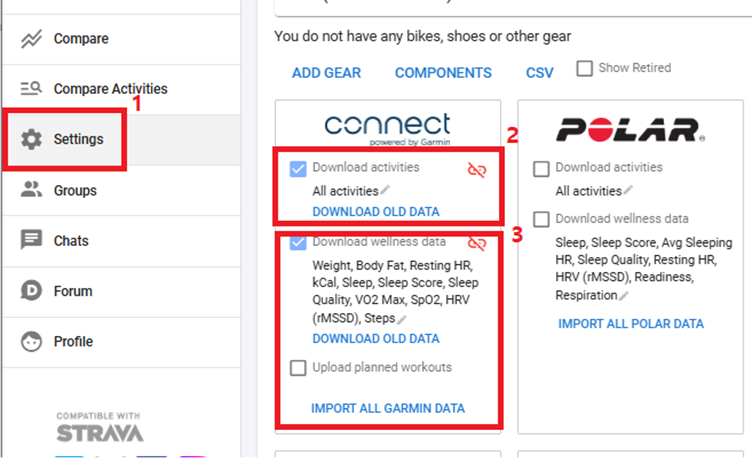
- Click Settings in the bottom left menu
- Find Garmin Connect and check the box to enable data sharing. When prompted to agree to data transfer, click Agree.
- Also check the Download wellness data box to sync wellness metrics (Weight, Body Fat, Resting HR, Sleep, HRV, VO2 Max, SpO2, Steps, etc.)
2) Enable Garmin Data Transfer
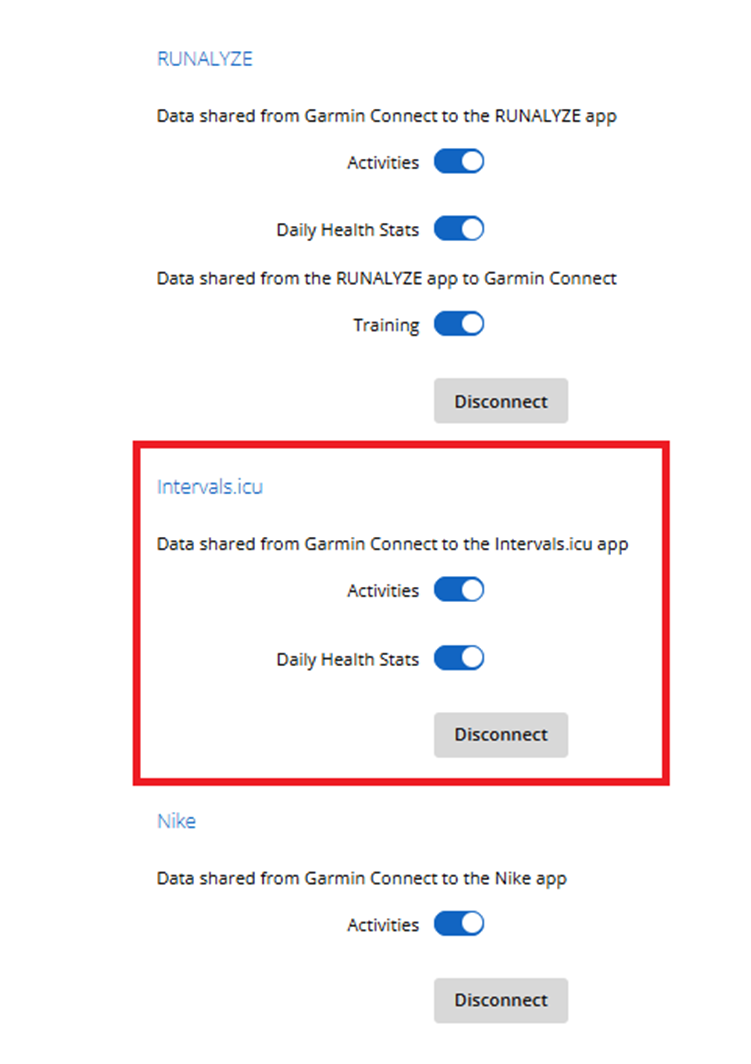
Go to Garmin Connect Settings and log in.
- Find Intervals.icu in the connected apps section
- Toggle Activities to ON
- Toggle Daily Health Stats to ON
3) Configure Intervals.icu Settings
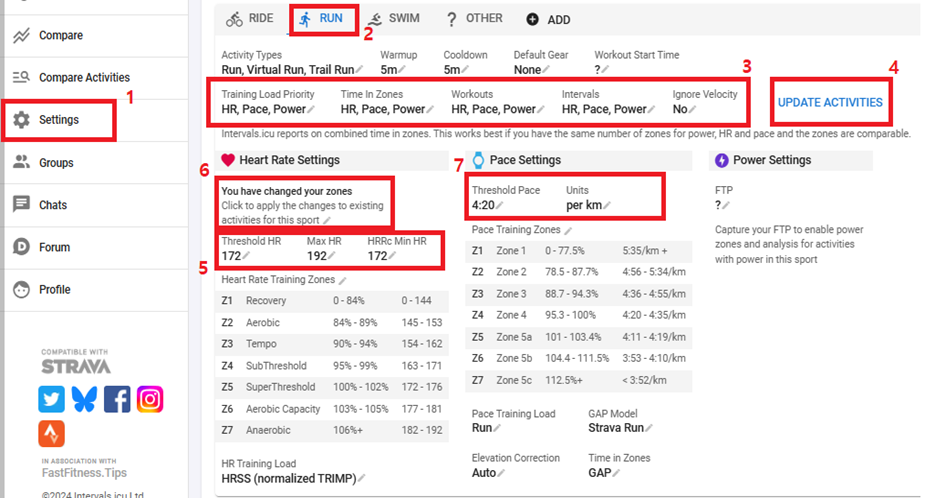
- Go to Settings in Intervals.icu
- Click the RUN tab at the top
- Change Training Load Priority to:
HR, Pace, Power - Do the same for Time in Zones, Workouts, and Intervals
- Click UPDATE ACTIVITIES button
- In Heart Rate Settings, enter your Threshold HR and Max HR
- Click the yellow notice that says "You have changed your zones" to apply changes to existing activities
- In Pace Settings, enter your Threshold Pace
4) Download Historical Data
Important: By default, only 3 months of data is transferred. To get up to 1 year of historical data for better Weekly/Monthly summaries:
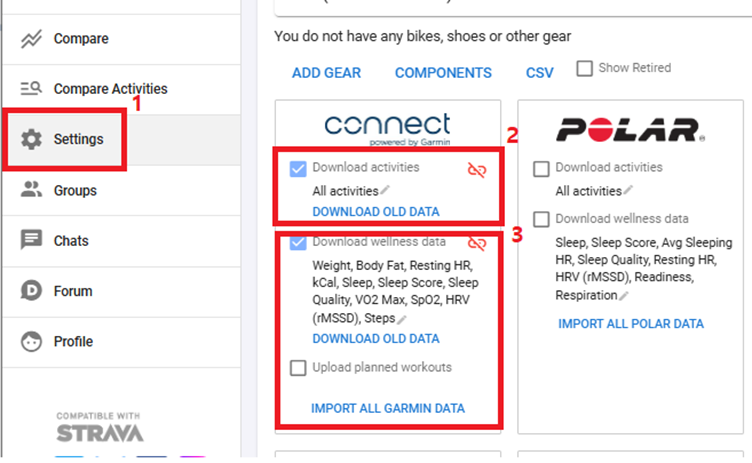
- Go back to Intervals.icu Settings
- Find the Garmin Connect section
- Under Download activities, click DOWNLOAD OLD DATA
- Under Download wellness data, also click DOWNLOAD OLD DATA
Note: We recommend doing this step last, as doing it first may cause sync issues.
5) Connect to ONWRD
- Open the ONWRD app → Settings → Integrations
- Select Intervals.icu
- Click Connect
Verify Connection
On successful connection:
- Your activity history will sync
- Wellness data (sleep, HRV, etc.) will sync
- Your first Daily Feedback will be generated
Need Help?
If you have any questions, contact us at support@goonwrd.com. Or visit the ONWRD Community Forum to ask questions and share feedback with other athletes.